Skip to content
Clubroom

Changelog

What's new in Clubroom, and which clubs asked for it.

    • New
    • Members
    • Memberships

    Your membership on one page
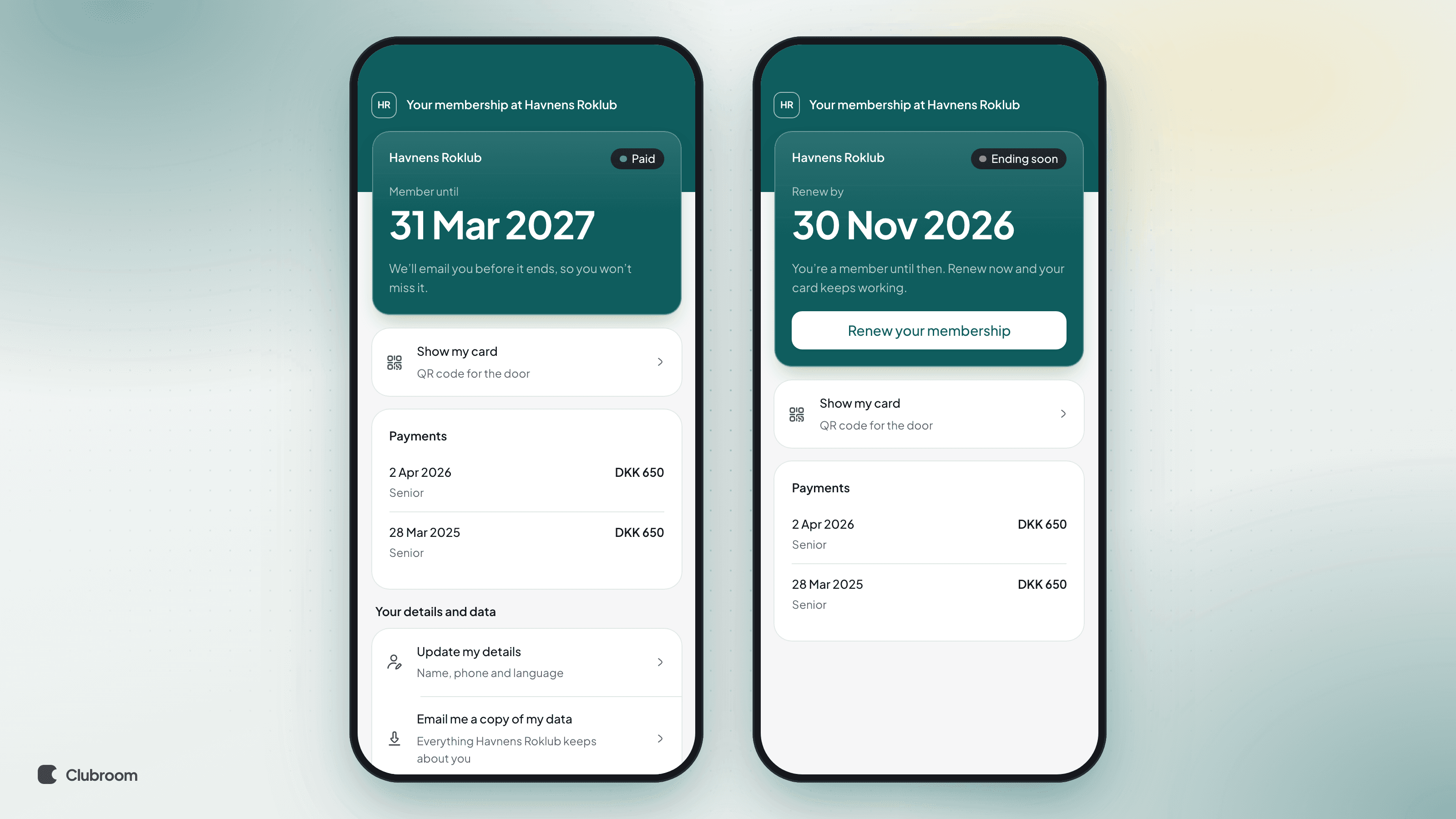
    Two phones showing Your membership at Havnens Roklub. Left, a pass marked Paid with a green dot: member until 31 Mar 2027. Right, an amber dot and Ending soon: renew by 30 Nov 2026, with a Renew your membership button.

    "Have I paid?" is the question members ask the club most. Now they can see the answer themselves. Every member gets a page with their membership, and the link to it is in the club's emails.

    What's new

    • The page Your membership answers the question first, in words and colour: green when they've paid, amber when they need to renew soon, and red when the membership has ended or they haven't paid yet.
    • When they need to renew or pay, the button sits right under the answer.
    • Below it are their membership card with the QR code, their payments, newest first, and links to update their details, get a copy of their data and ask to be deleted.
    • The welcome email, renewal reminders and renew links now carry a link to the page.
    • A member in several memberships sees one answer for each, on the same page.
    • Open a member under Members and, under More, choose Send link or Copy link if they've lost the email. You can email or copy the link to the page.

    How to set it up

    • There's nothing to turn on. The page comes with the emails your members already get.
    • To try it, open a member, choose More › Send link, and click Open link. You'll see the page as the member sees it.

    Good to know

    • The answer is worked out every time the page opens, so an old link never shows a stale status.
    • The link works for 120 days. After that it says the member can ask the club for a new one.
    • The page shows and links; it doesn't change anything itself. For the first 14 days after the email, Update my details opens the form straight away. After that the page emails the member a fresh link, as do Email me a copy of my data and Ask to be deleted, so only the inbox's owner can go on.
    • Receipts are still emailed when a member pays.
    • Anyone who has the link can see the page, so members shouldn't forward the email.
    • New
    • Members
    • Memberships

    Automatically chase unpaid members

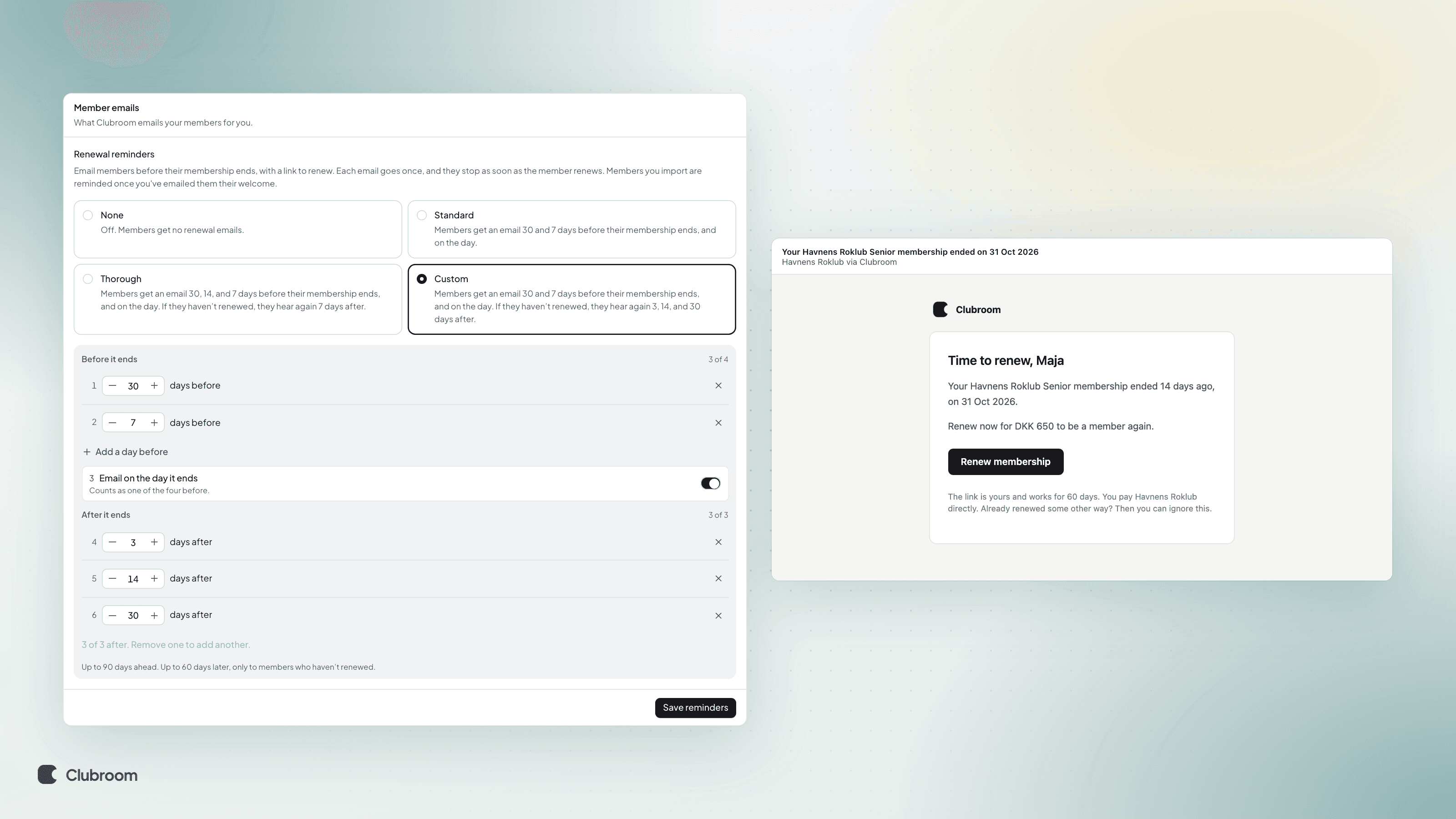
    Settings › Renewal reminders with Custom picked: emails 30 and 7 days before, on the day it ends, and 3, 14 and 30 days after. Beside it, the email a member gets 14 days after their membership ended, with a Renew membership button.

    Automatically chase unpaid members with up to three reminders after their membership ends.

    What's new

    • Under Settings › Club › Renewal reminders you can add up to three reminders after the end date, for example 3, 14 and 30 days after, at most 60 days.
    • Each goes once, and they stop as soon as the member renews.

    How to set it up

    • Choose Custom, click Add a day after, set the number of days, and click Save reminders.
    • New
    • Members
    • Memberships

    Waiting lists for full memberships

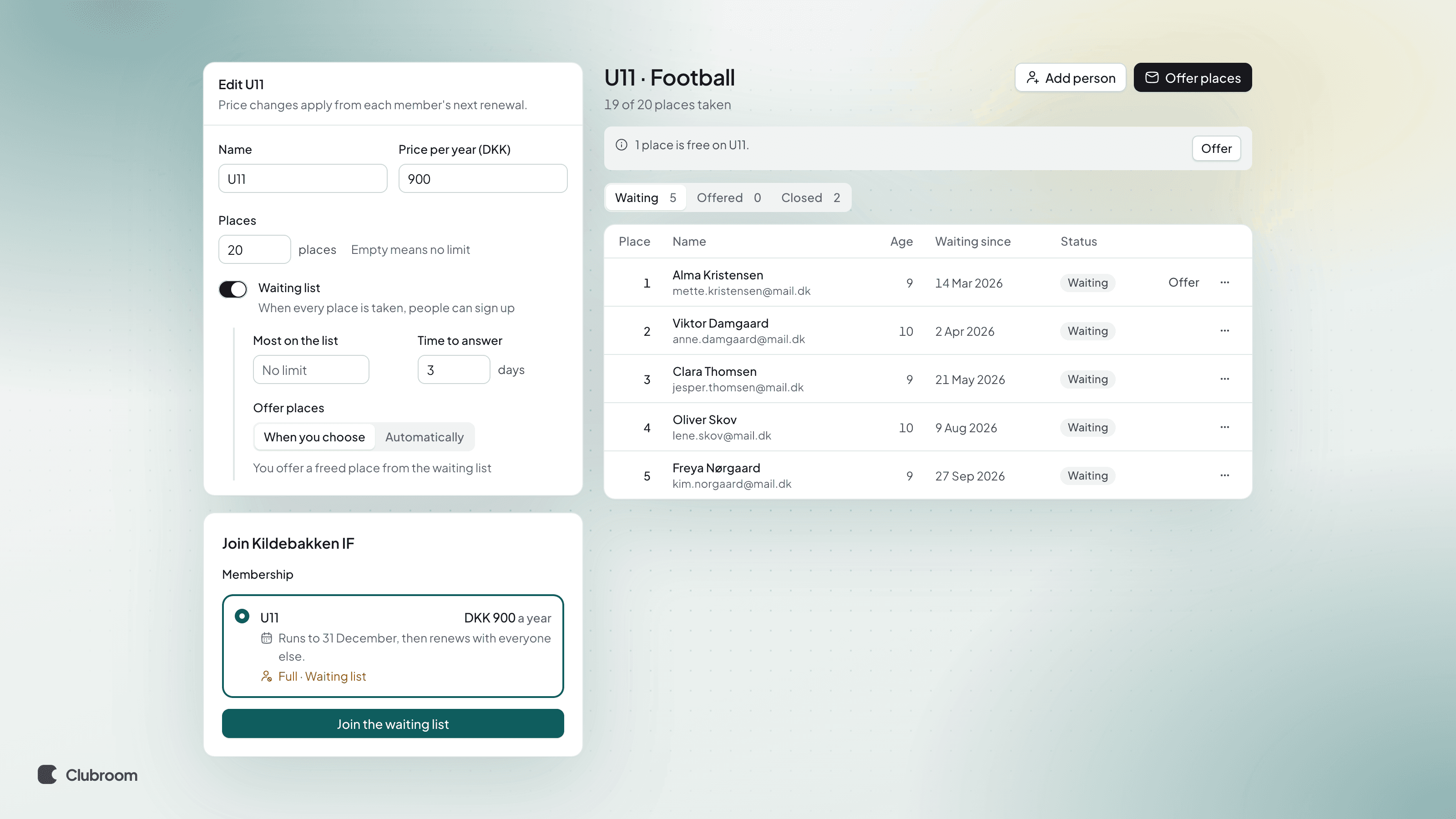
    The U11 membership with 20 places and Waiting list on, next to the waiting list with five people in order, an Offer button beside the first, and the join form showing Full · Waiting list.

    If U11 only has room for 20, you can now cap its places. Once they're taken, newcomers can join a waiting list, and places go to them in order as they open up.

    What's new

    • A membership can have a number of Places. The table under Memberships shows, say, 18 / 20, and Full once they're all taken.
    • With Waiting list on, the join form says Full · Waiting list, and people sign up with a name and an email. They confirm through a link in an email, so nobody can sign up someone else.
    • Members › Waiting lists shows who's waiting and in what order. You can move people, add a note and add someone who phoned.
    • A free place becomes an offer with a deadline, 3 days by default. You choose whether you offer places yourself or the next in line gets the offer automatically.
    • Taking the place is joining: they fill in the club's fields and pay like any other join. If they say no or don't answer, the place goes to the next person.
    • People on the list can see their place and leave the list from the link in their emails.

    How to set it up

    • Open the membership under Memberships, enter the number under Places and turn on Waiting list.
    • Pick Time to answer and Offer places, and if you like, set a cap under Most on the list.
    • In Settings › Members, choose the order on the lists and whether everyone gets asked once a year if they still want a place.

    Good to know

    • When people are waiting, newcomers can't jump the line, even if a place opens. It goes to the first person on the list.
    • A lapsed member who pays late gets back in, even when the membership is full.
    • New
    • Settings

    Give a department lead access to just their department

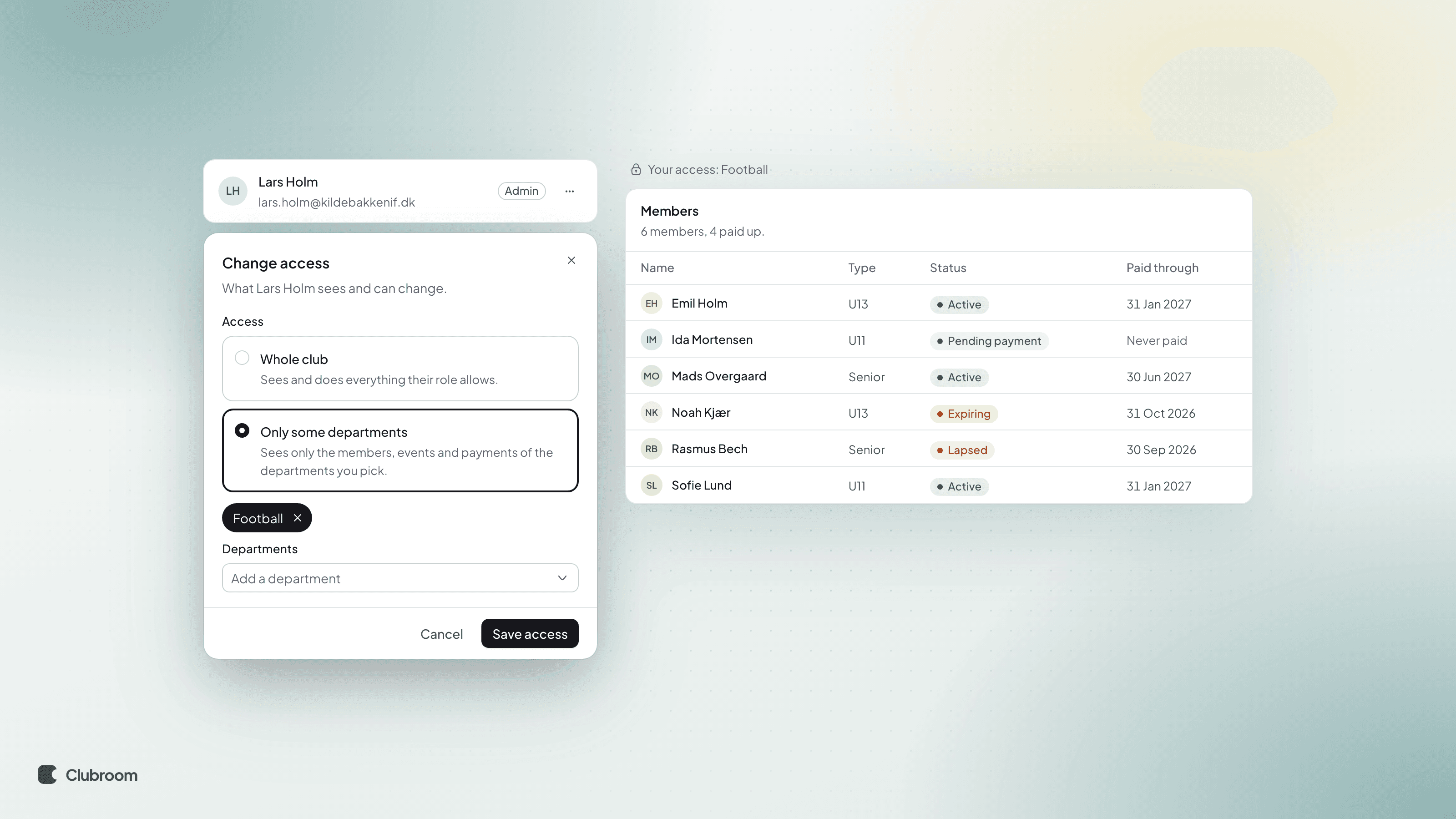
    The Change access dialog in Settings › Team with Only some departments picked and Football added, next to the members list as the football chair sees it, with only football's members.

    The football chair should be able to look after football's members without seeing badminton. Now an admin or a board member can have access to just some departments.

    What's new

    • In Settings › Team, click Change access… in the menu beside the person and pick Only some departments.
    • They see only the members, events and payments in their departments. Other members don't exist for them, not even in search or counts.
    • When a member plays both football and badminton, the football chair sees the member, but only the football membership.
    • They can record payments, create events for their department and export their own members. Every export is logged.

    Good to know

    • Bank matching, refunds, prices and settings still need access to the whole club.
    • The owner always sees the whole club.
    • People can see their own access on their account page.
    • New
    • Members
    • Memberships
    • Settings

    Departments, and several memberships per member

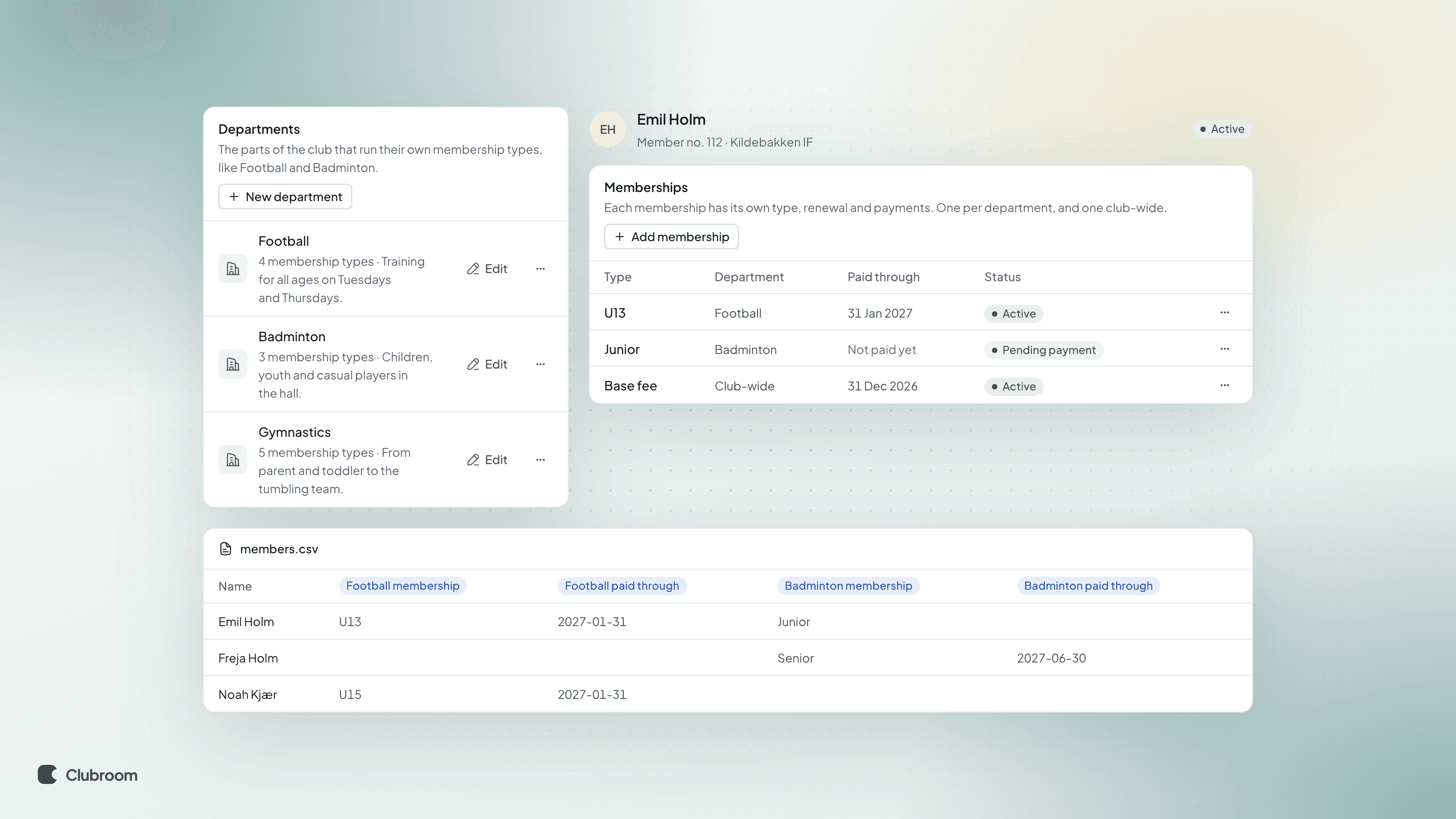
    Departments in settings with Football, Badminton and Gymnastics and their membership types, next to Emil's memberships, U13 in Football and Junior in Badminton, each with its own status, and the export's columns per department.

    If Emil plays both football and badminton, you used to need a type called "Football + badminton". Now your club can have departments, each with its own membership types, and a member can hold a membership in each.

    What's new

    • In Settings › Departments you add, say, Football, Badminton and Gymnastics, and set the order they show in.
    • Each department has its own membership types. Two departments can both have a type with the same name, like Junior.
    • A member can hold one membership in each department and one club-wide, like a base fee.
    • Each membership has its own price, renewal, reminders and payments. When Emil pays for badminton, his football stays as it is.
    • The members export gets two columns per department, like Football membership and Football paid through.

    How to get started

    • Go to Settings › Departments and click New department.
    • Under Memberships, pick a Department on each membership type.
    • Open a member and click Add membership under Memberships to give them another department. Change type moves them within the department, say from U13 to U15, and End stops a membership.

    Good to know

    • When you filter by, say, Lapsed, a member shows up if any one of their memberships has lapsed.
    • Without departments, everything looks as it did.
    • New
    • Members

    Join several departments in one go

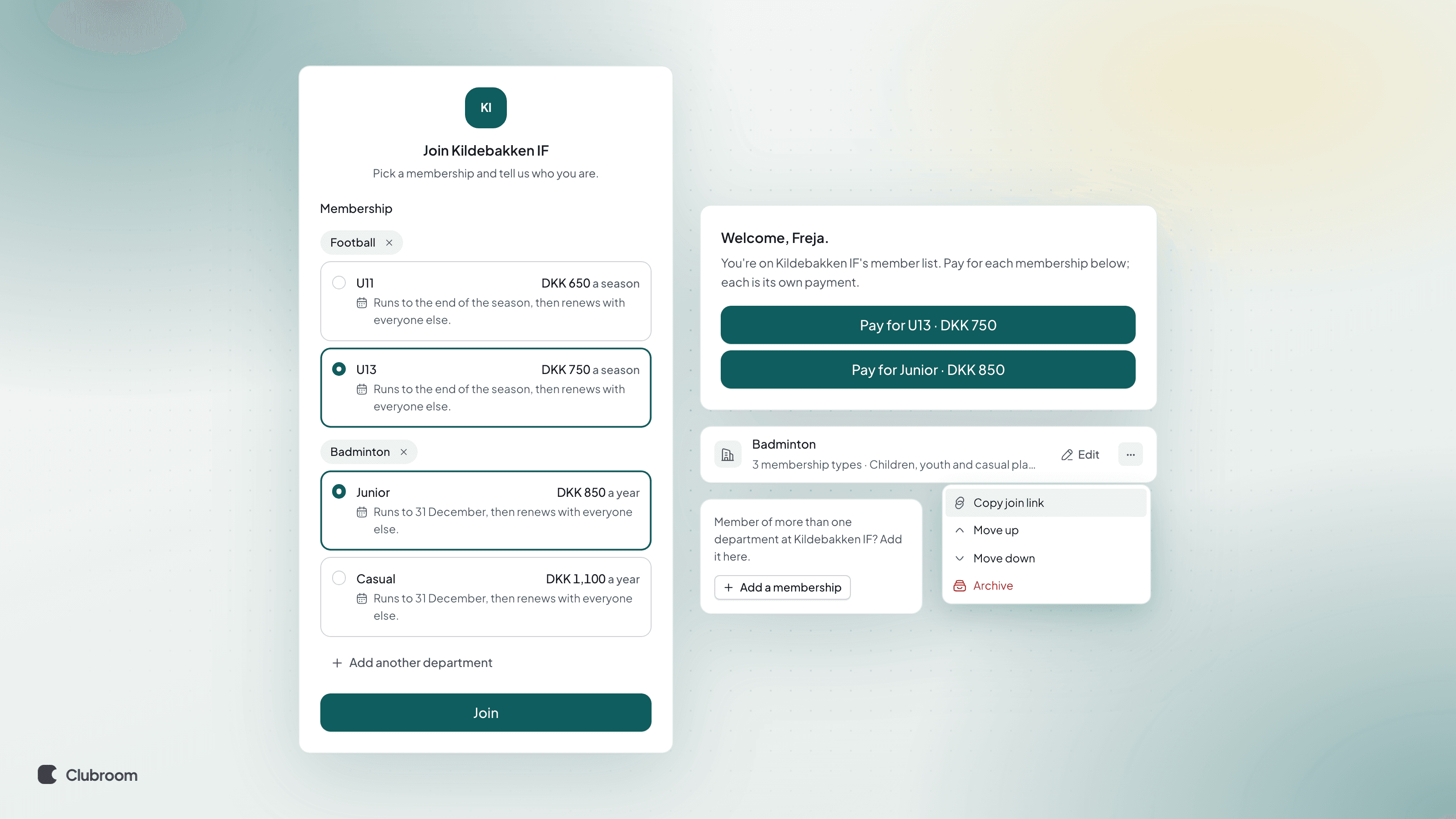
    The join form with Football and Badminton picked, each with its own membership, and the Add another department button, next to the welcome screen with a Pay button per membership, the menu with Copy join link, and Add a membership on the membership card.

    When your club has departments, the join form now starts by asking which department. Then you pick the membership in that department, and you can take more departments in the same go.

    What's new

    • Departments show as cards on the join form. With many, people can search them, and with only one the step is skipped.
    • Add another sport picks one more department, with its own membership. In a culture or hobby club the button says Add another activity, and in other clubs Add another department.
    • Once they've joined, there's a Pay button for each membership. Each membership is its own payment.
    • Every department has its own join link, which opens the form with that department picked. Find it in Settings › Departments, in the … menu beside the department: click Copy join link.
    • Members see the word that fits your kind of club: a sports club says "sport", a culture or hobby club "activity", and other clubs "department".

    When a member joins another department

    • On their membership card they click Add a sport (Add an activity in a culture or hobby club, Add a membership in other clubs) and pick the department and membership.
    • If they join again with an email the club already knows, they get an email with a link to add the department instead. That way nobody can create memberships and bills for someone else.
    • New
    • Memberships
    • Settings

    Fee periods replace seasons

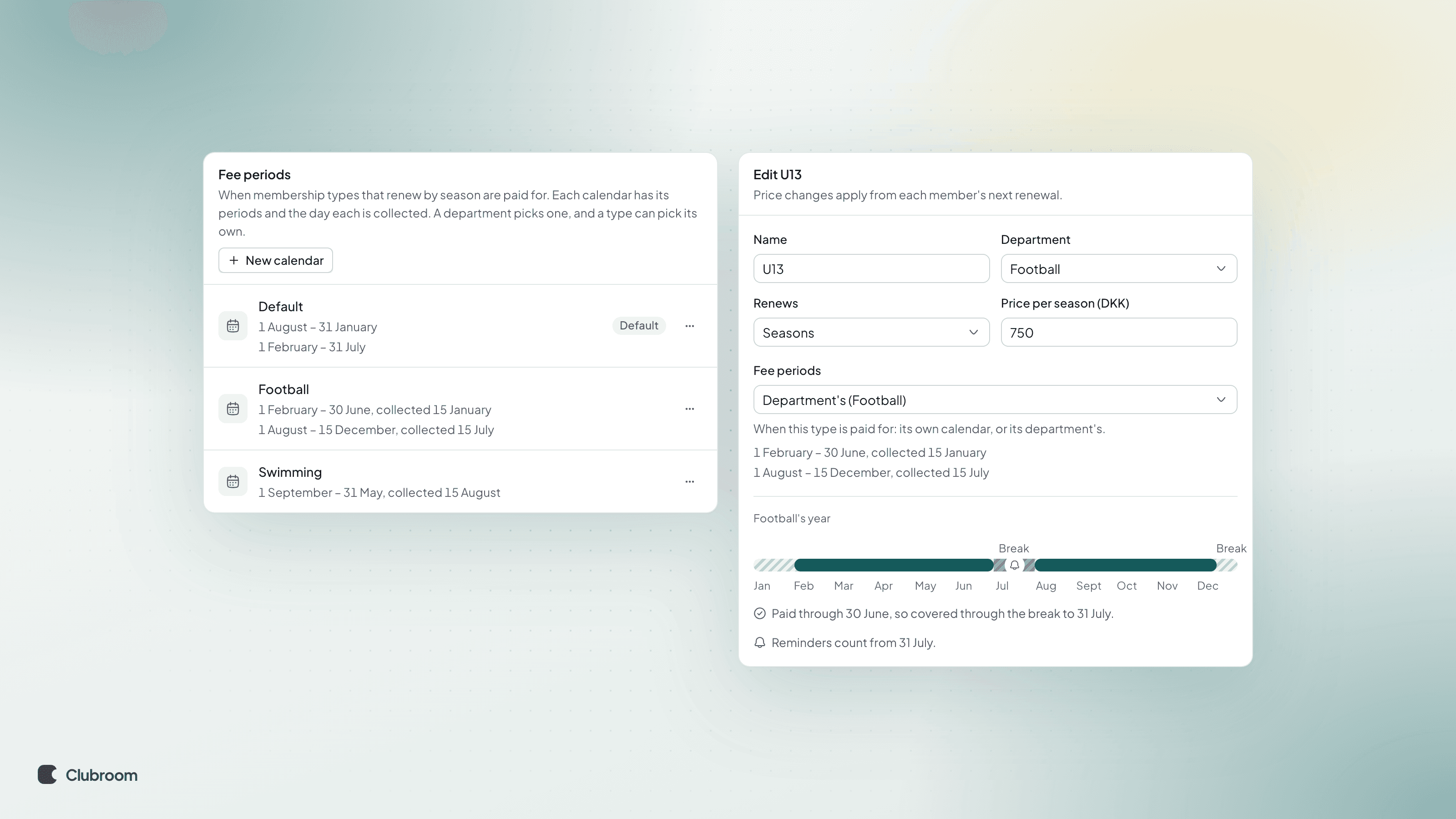
    Fee periods in settings with the Default, Football and Swimming calendars and the days they're collected, next to the U13 type in Football going by its department's calendar, and a year where July counts as paid.

    Football might charge every half-year while swimming follows the school year. Now each department can have its own periods, and you choose the day each one is collected.

    What's new

    • Settings › Fee periods replaces the seasons under Renewal dates. Your seasons have moved across as the club's default calendar.
    • A calendar has up to four periods, each with a start, an end and the day it's collected. You can collect up to three months before a period starts.
    • A department picks a calendar, and its membership types go by it. A type can have its own too, say when the youngest age groups pay on other dates.
    • When there's a break between two periods, like the summer holidays, members who've paid stay paid up through the break. Reminders count from the day the break ends.

    How to set it up

    • Go to Settings › Fee periods and click New calendar.
    • Name it, say Football, and add the periods. If a period is paid before it starts, pick the day under Collected.
    • Open the department in Settings › Departments and pick the calendar under Fee periods.
    • If one type needs other dates than the rest of its department, pick the calendar on the type instead. This is for types that renew by Seasons.

    Good to know

    • Periods members have already paid for keep their dates, even if you edit the calendar.
    • New
    • Home
    • Members

    See who has outgrown their membership type

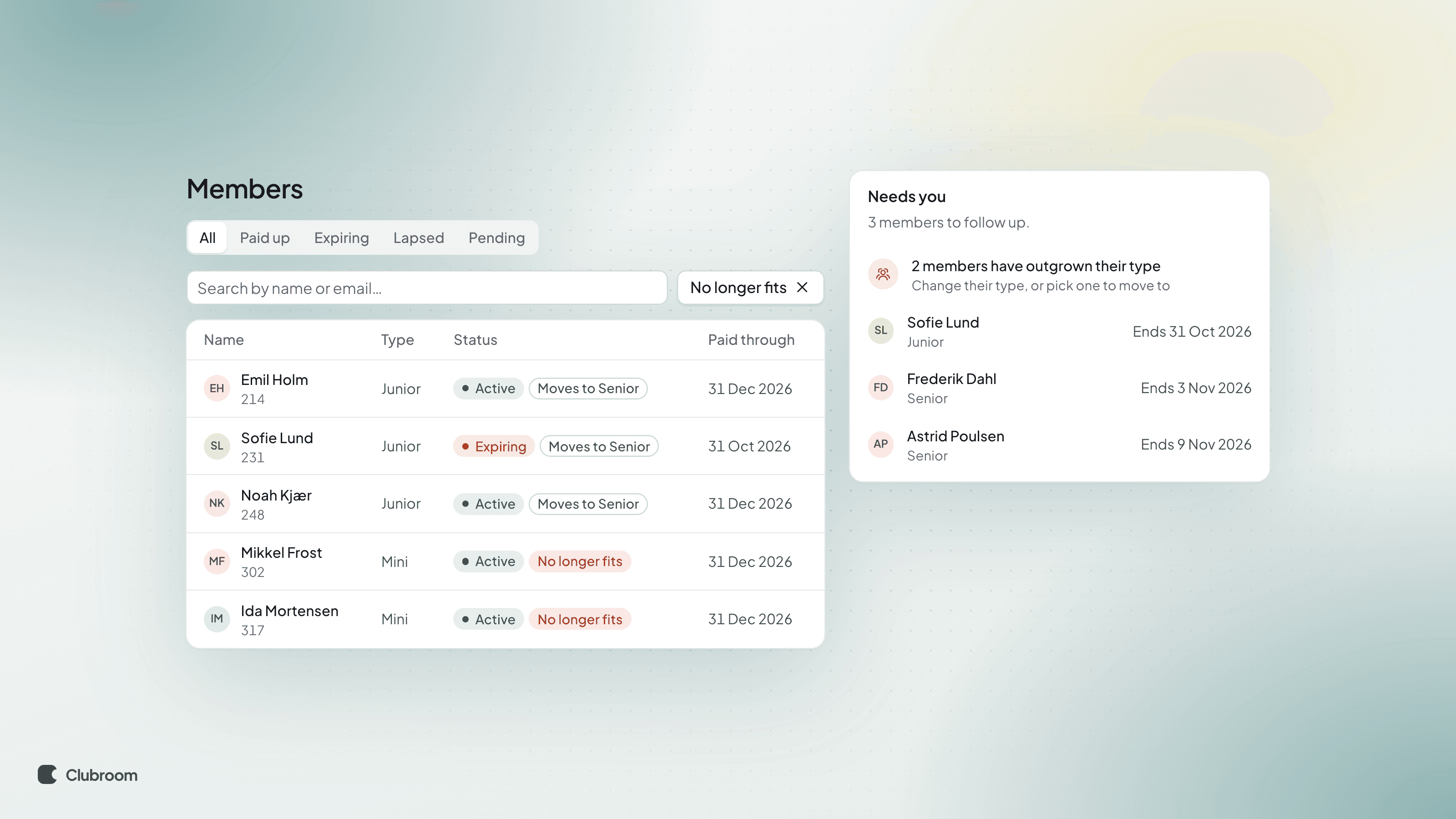
    The members list with the No longer fits filter on and badges on the rows: "Moves to Senior" on three juniors and a red "No longer fits" on two Mini members, next to Needs you on the dashboard with the row "2 members have outgrown their type".

    Once you've set age limits, you want to know who's about to move, and above all who can't be moved. Now you can see them on the members list and on the dashboard.

    What's new

    • Members has a new filter, No longer fits. It shows members whose age no longer fits their membership type.
    • Every row has a badge. Moves to Senior means the member moves by themselves at their next renewal. A red No longer fits means the type has nowhere to move them, so this one is yours to sort out. Hover the badge to read why.
    • Needs you on the dashboard counts the members who have outgrown their type with nowhere to move to. Click the row to see them. The list then shows only them, under the Nowhere to move filter.

    How to use it

    • Click No longer fits on the members list, or click the row on the dashboard.
    • Open a member with a red badge and use Change type. Or open the type under Memberships and pick, under Advanced, which type it sends members to.
    • Click the filter again to see everyone.

    Good to know

    • The filter only shows once at least one membership type has an age limit.
    • Nothing is stored: the list is worked out from birth dates every time, so it's always right as of today.
    • Members without a birth date are never included.
    • The filter applies to the list only. Save as segment and Email them are hidden while it's on.
    • New
    • Members
    • Memberships

    Age limits on membership types, and moving up automatically

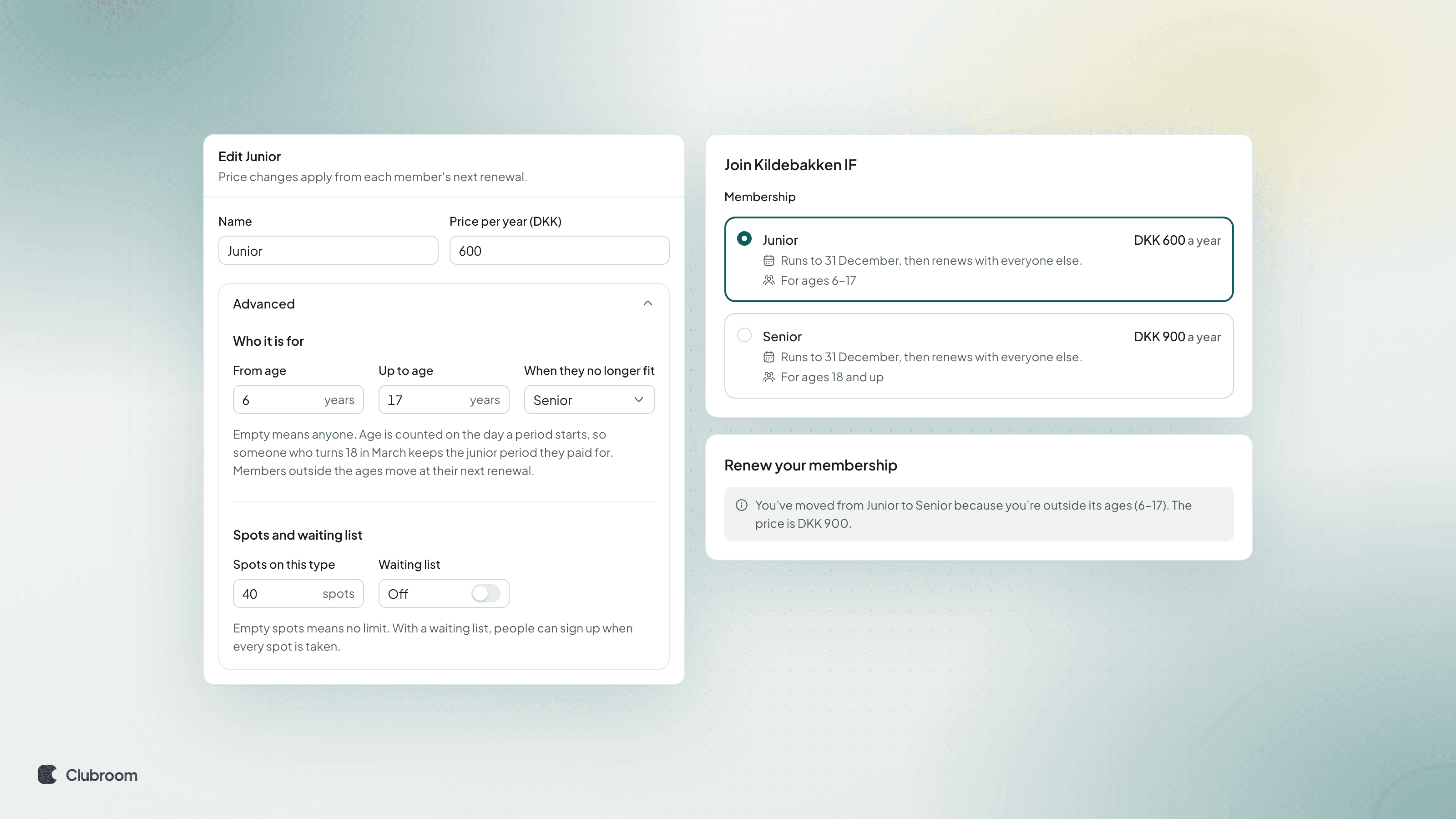
    The Junior membership type with Advanced open: from age 6 up to age 17, Senior as the type they move to, and 40 spots. Next to the join form, where Junior says "For ages 6–17" and Senior "For ages 18 and up", and a renewal page telling the member they've moved

    When Emil turns 18, he shouldn't keep paying the junior fee. A membership type can now have an age limit, and members who grow out of it move to the next type when they renew.

    What's new

    • Under Advanced on a membership type, Who it is for has From age and Up to age. Empty means anyone.
    • Age is counted on the day a period starts. Someone who turns 18 in March keeps the junior period they paid for, and moves at their next renewal.
    • When they no longer fit picks the type they move to. That type can have its own age limit and its own move, so Mini can lead to Junior and Junior to Senior. The chain is followed up to five steps.
    • The join form shows each type's age limit, like "For ages 6–17". If a birth date doesn't fit the type picked, people are told and can pick another. If the form doesn't know the birth date, it asks for it.
    • The renewal page says why the member has moved and what the new type costs. Renewal reminders count on the new type.
    • Spots and the waiting list now sit in the same Advanced section, so the type form is easier to scan.

    How to set it up

    • Open the type under Memberships and click Advanced.
    • Fill in From age and Up to age.
    • Under When they no longer fit, pick the type they move to. It has to be in the same department and open to new members.

    Good to know

    • A member with no birth date is never moved on a guess.
    • If nothing in the chain fits, the member stays on their type and you're told (see the next post).
    • A membership never changes department because someone gets older.
    • As an admin you can still put a member on a type outside its age limit yourself, say a talented 15-year-old on the senior team.
    • New
    • Broadcasts

    Schedule broadcasts, and greet every member by name

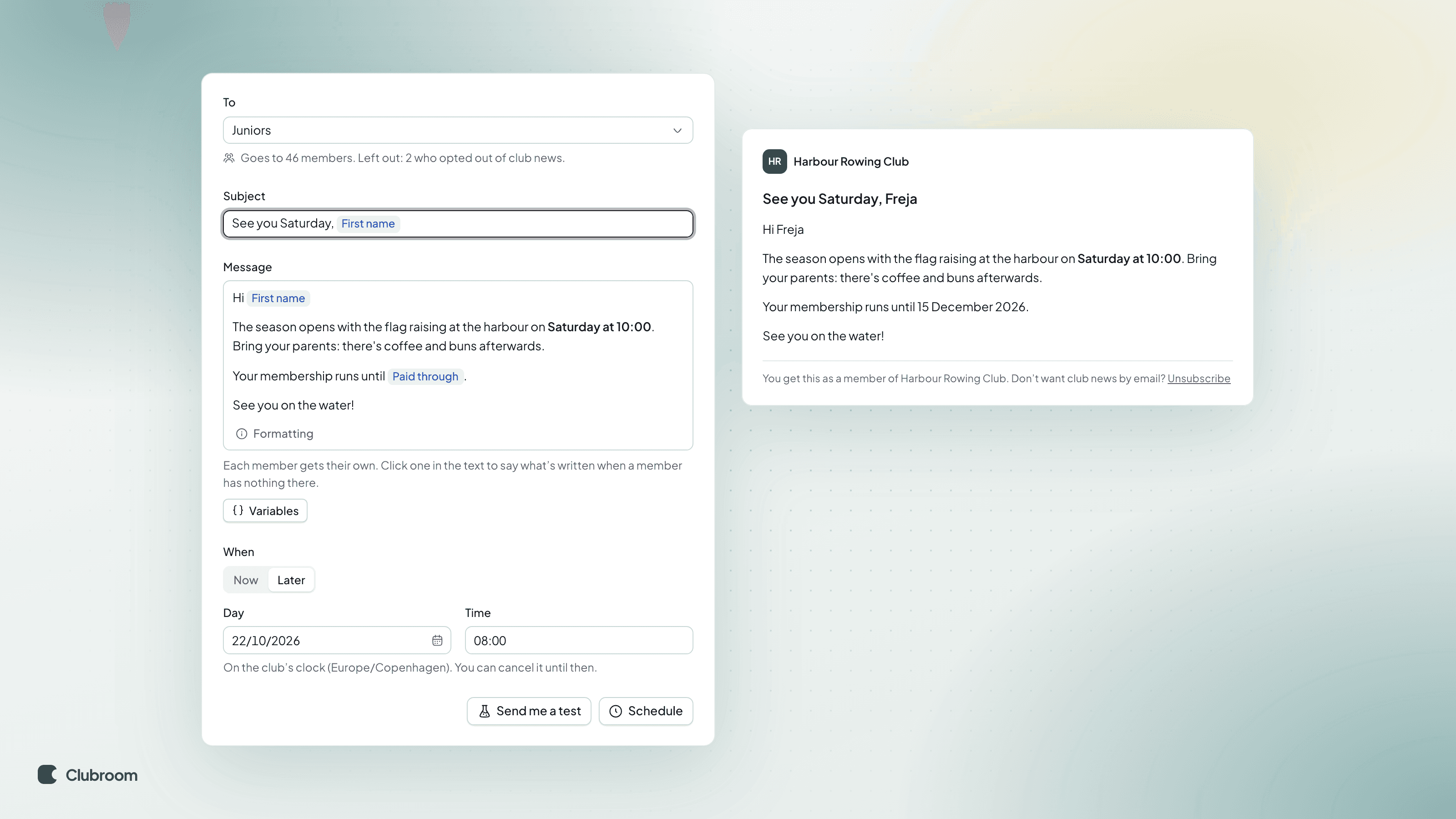
    The broadcast composer with Later picked, a day and time, and the first name as a variable in the subject and message, next to a preview reading Hi Freja.

    Write the broadcast when you have time, and send it when members will read it. And greet every member by name.

    Schedule a broadcast

    • Write the broadcast and pick Later under When.
    • Pick a day and time, on the club's clock.
    • Click Schedule. It's under Scheduled on Broadcasts, where you can edit it or cancel it until it goes.

    Variables

    • Click Variables and put a first name, member number, paid-through date and more into the subject or message.
    • Each member gets their own copy. The preview shows how it looks.
    • Click a variable in the text to say what's written when a member has nothing there.
    • New
    • Members

    Email one member

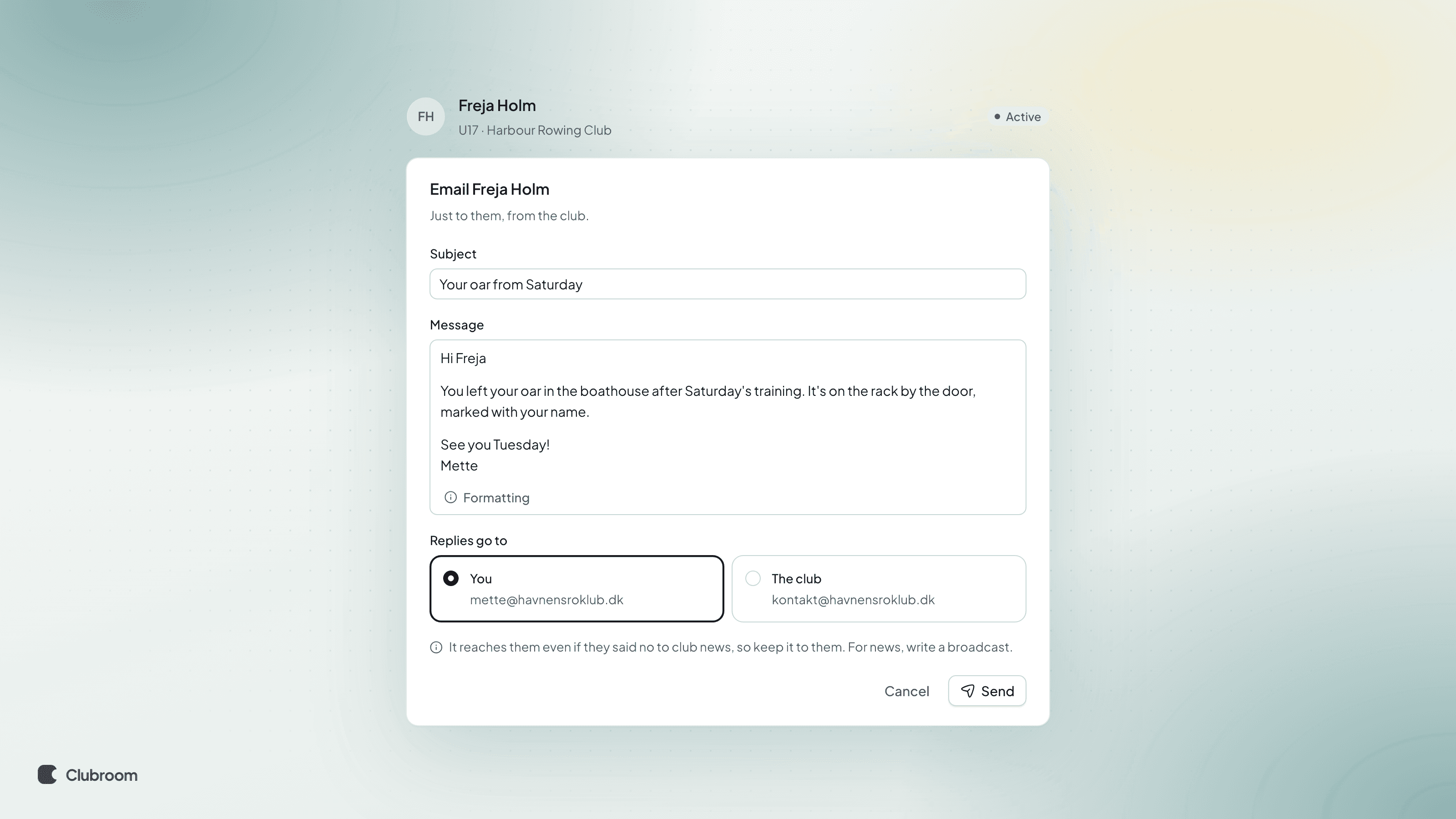
    A member's page with the Send email dialog open: subject, message, and the choice of replies going to you or to the club.

    Sometimes you just need to write to one person. Now you can do it straight from the member's page, without opening your own email.

    How to send one

    • Open the member and click Send email.
    • Write a subject and a message. The message can have headings, lists and links, just like a broadcast.
    • Pick whether replies go to you or to the club, and click Send.

    Good to know

    • The email comes from the club and shows in the member's activity.
    • It reaches them even if they said no to club news, so keep it to them. For news, write a broadcast.
    • New
    • Members
    • Payments

    Parents who pay for their children

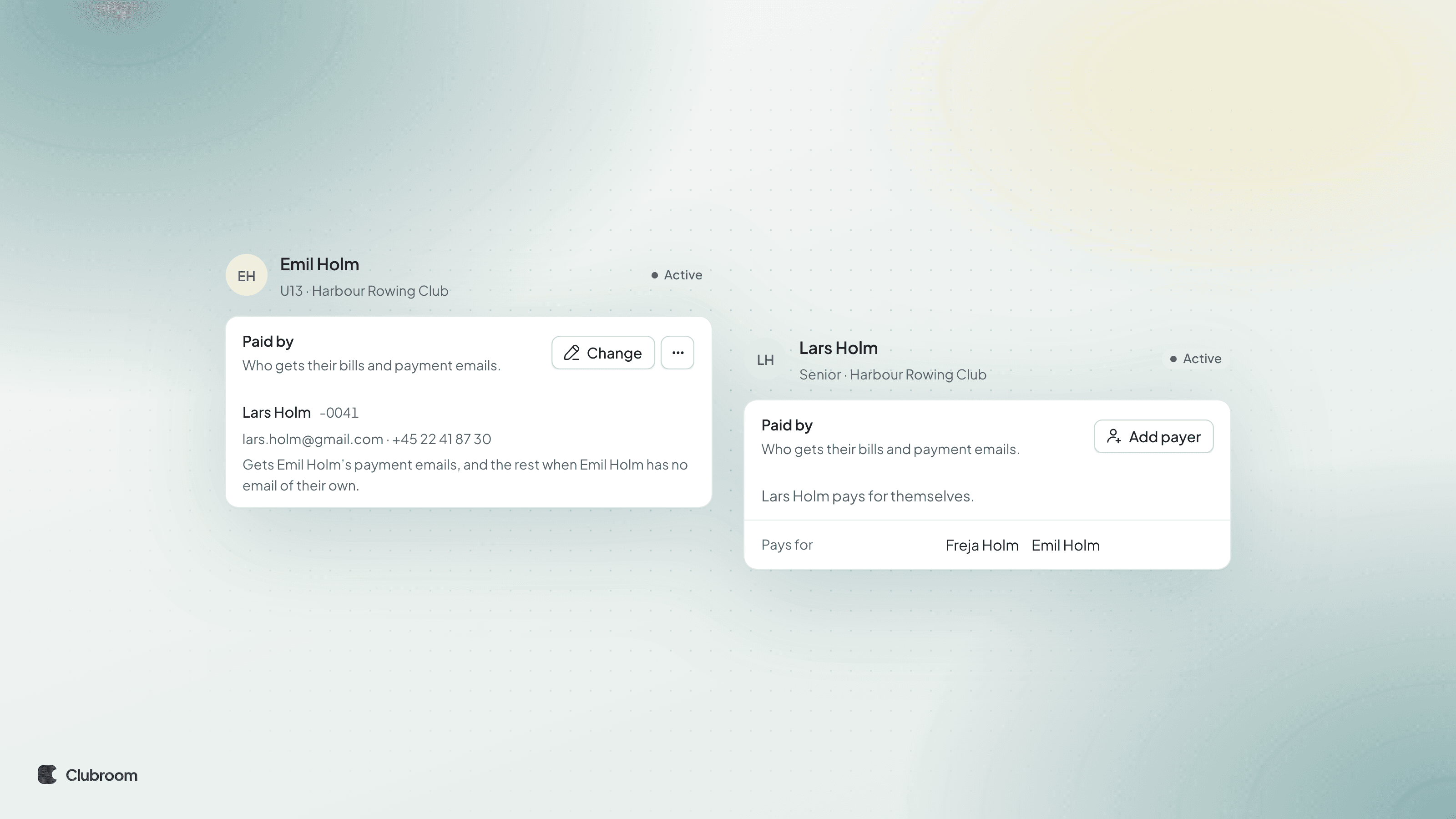
    Two member pages: Emil's says his dad Lars pays and gets his payment emails, and Lars's lists Freja and Emil under Pays for.

    Children rarely pay for themselves. Now you can say who pays for a member, so bills and reminders reach the right person.

    How to set it up

    • Open the member and click Add payer under Paid by.
    • Enter the payer's email. Someone already in the club is linked as they are.
    • Pick which emails they get: Payment emails, or Payment emails, and the rest as a fallback when the child has no email of their own.
    • Several at once? Tick them on the members list and use Set payer….

    What happens next

    • The payer gets the member's bills, reminders and receipts.
    • The payer's own page lists who they pay for, under Pays for.
    • Improved
    • Settings

    Sports clubs ask for birth date and gender from the start

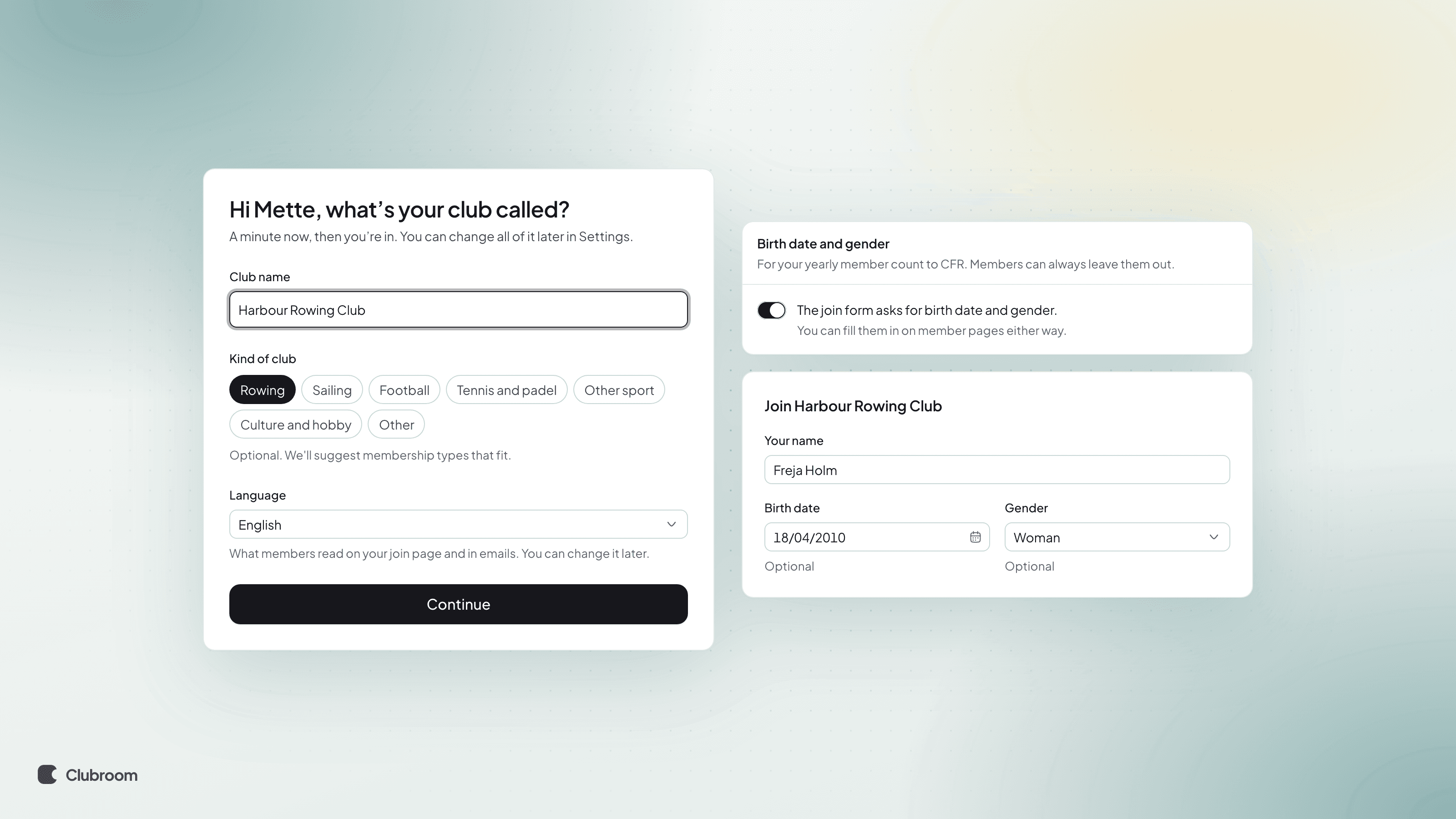
    Onboarding with Rowing picked as the club's kind, next to the Birth date and gender setting switched on and a join form asking for birth date and gender.

    Your member count to CFR needs birth date and gender. Now the join form asks for them from day one when you're a sports club.

    What's new

    • Pick a sport as your club's kind when you set up the club, and the join form asks for birth date and gender from the start.
    • Other kinds of club start with it off, as before.
    • Members can always leave the fields empty.

    Want it different?

    • Go to Settings › Members › Birth date and gender and switch it on or off.
    • Clubs set up before today keep their setting.
    • Improved

    New navigation on your phone

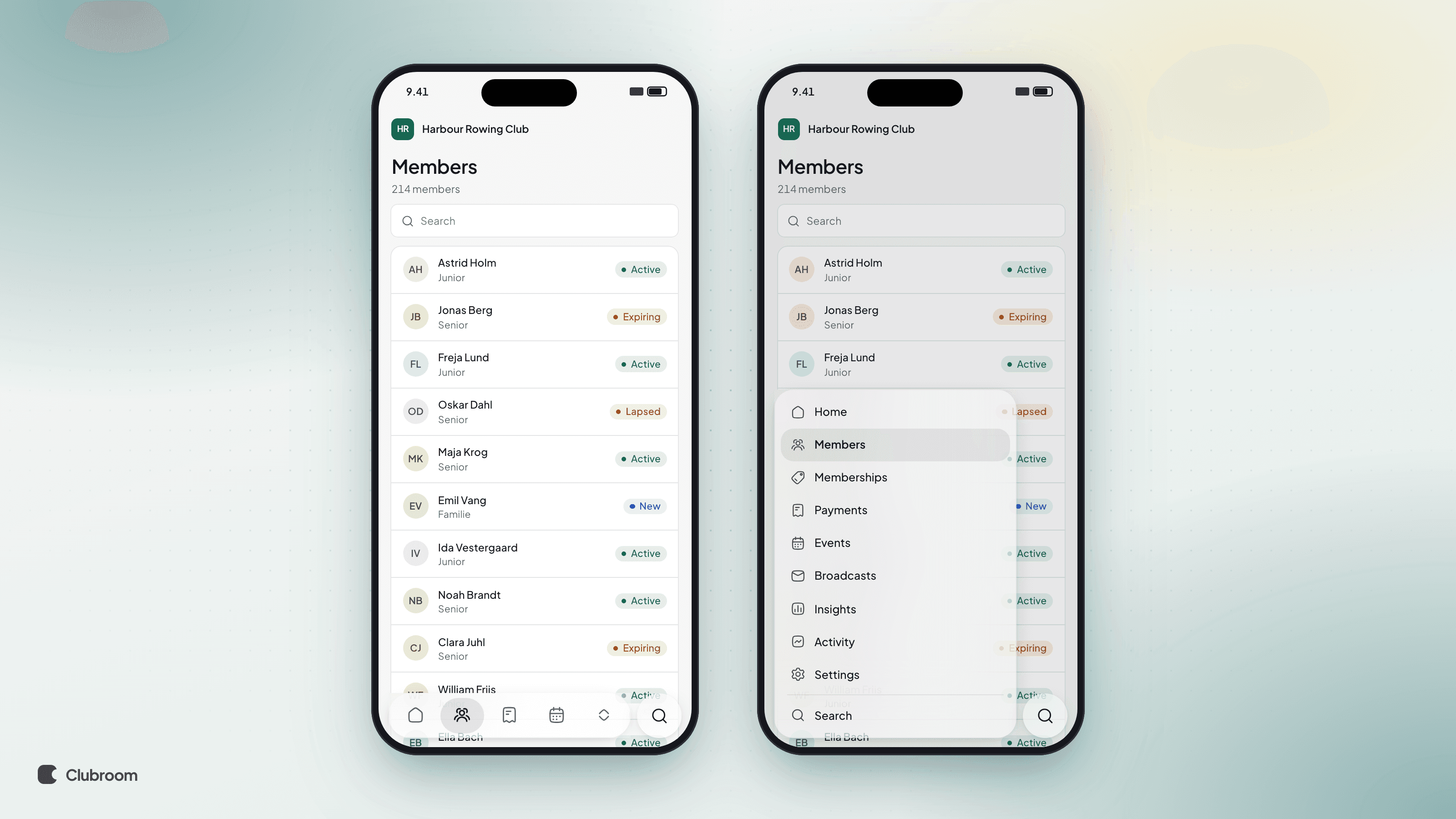
    Two phones running Clubroom. One shows the tab bar at the bottom, the other shows it opened up to every page.

    Clubroom on your phone has a new bar at the bottom, right under your thumb.

    • The pages you use most sit in the bar.
    • The chevron opens it up to All pages.
    • The round button next to it searches the whole club.
    • Search opens full screen, so there's room for the results.
    • New
    • Members

    See the emails a member was sent

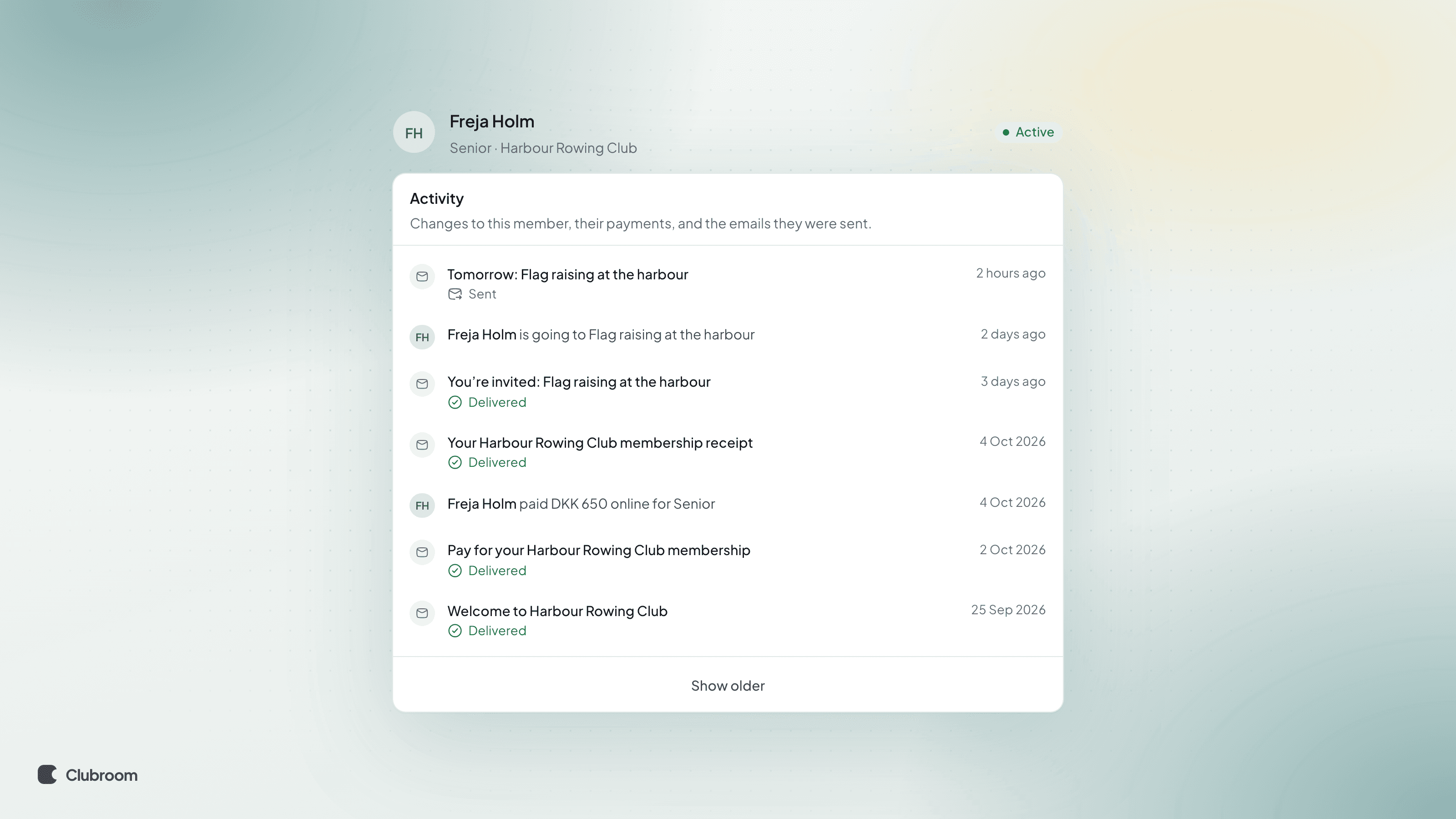
    Freja Holm's Activity, with Delivered and Sent emails listed between an RSVP and a payment.

    "Did you send me anything?" Now you can answer that straight away.

    A member's Activity now shows the emails they were sent, alongside changes and payments.

    • Each email shows how it went: Delivered, Sent, Bounced or Marked as spam.
    • Open an email to see it as it was sent, with private links taken out.
    • The text is kept for 90 days. The subject and date stay after that.
    • Improved
    • Members

    Import brings all your columns

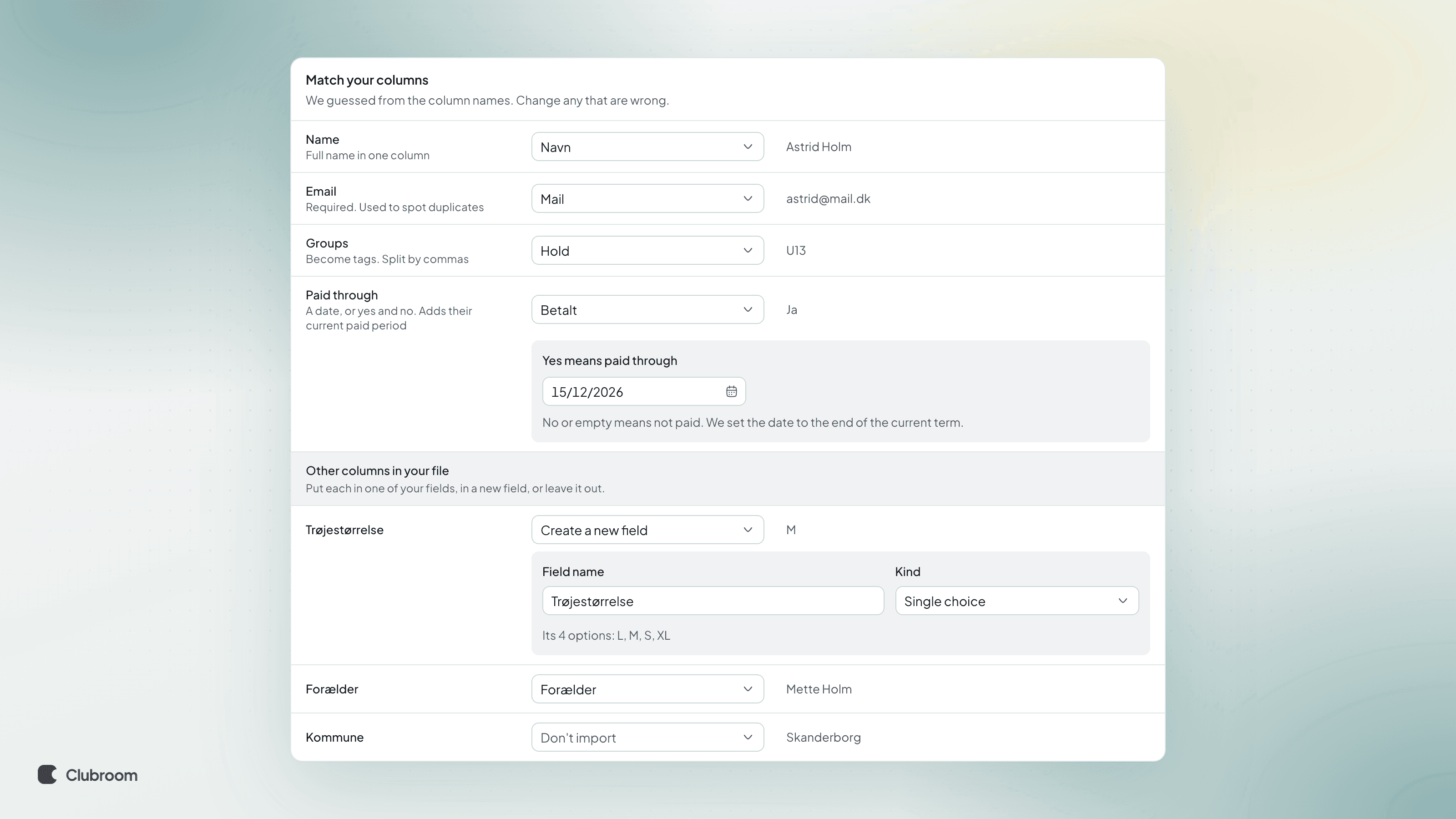
    The import's Match your columns step, where a Betalt (paid) column is matched to a date and a Trøjestørrelse (shirt size) column becomes a new field with four options.

    Your member list probably has more columns than name and email. Now they come along when you import.

    New in the import

    • Under Other columns in your file, choose for each column: put it in one of your fields, Create a new field, or Don't import. A new field takes the column's name, and we guess what kind of field it is.
    • Got a Paid column with yes and no? You choose the date a yes is paid through.
    • Members who left get their own tab and only come in if you choose Import them too.
    • Title rows are skipped, and a person listed on several teams becomes one member.
    • We now recognise exports from ForeningLet and MinForening, alongside Conventus, Klubmodul and Holdsport.

    No welcome or reminders go out until you choose to email a welcome. And you can undo the import for 24 hours.

    Find it under Members › More › Import.

    • New
    • Memberships

    Seasons: renew on your club's own calendar

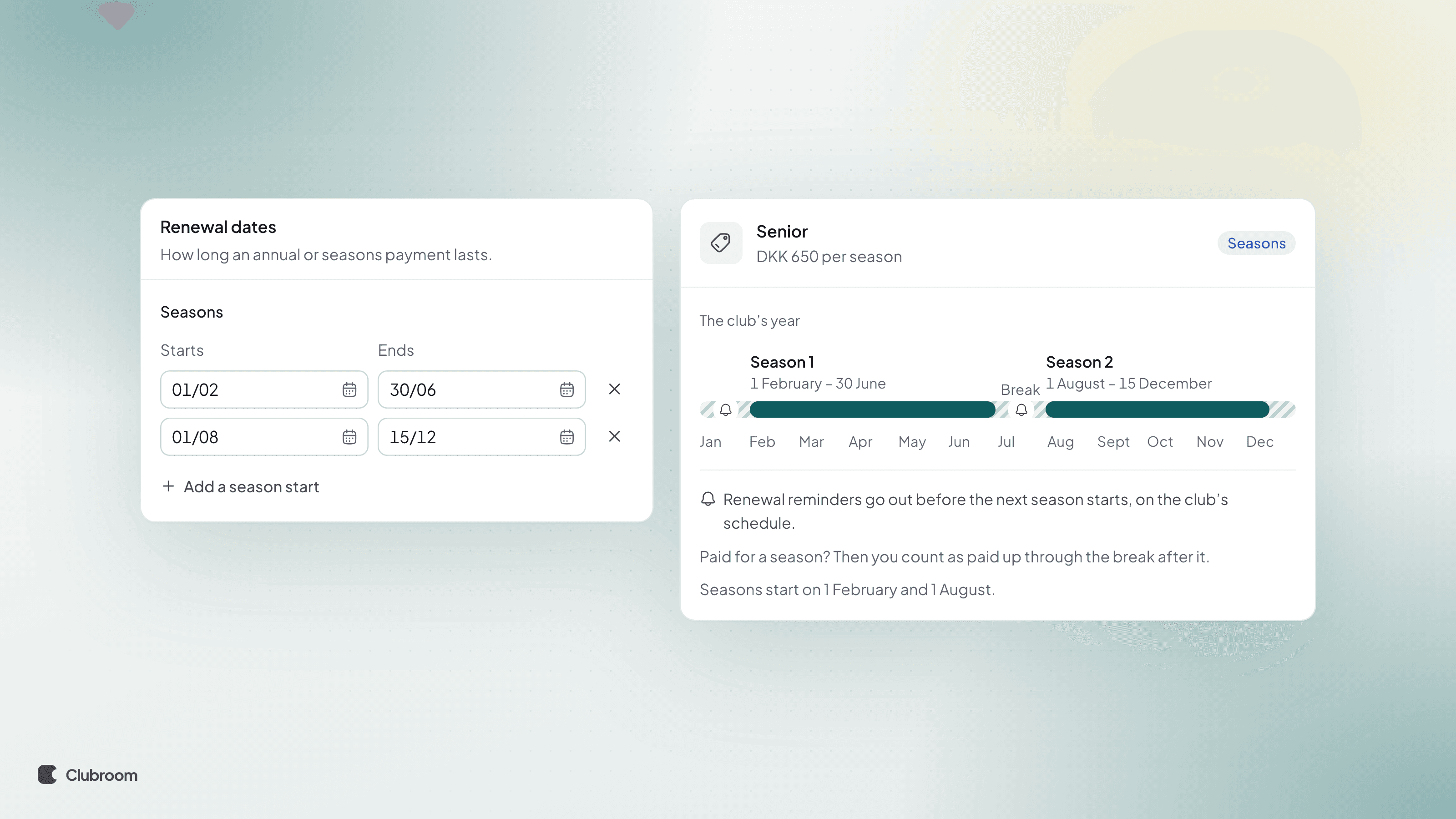
    The Seasons setting with two seasons, 1 February to 30 June and 1 August to 15 December, next to a timeline of the club's year.

    Not every club runs January to December. Now you can split the year into seasons, so members renew when a new season starts.

    How to set it up

    • Go to Settings › Club › Renewal dates and add 2 to 4 seasons under Seasons.
    • Give each season a start date, and an end date if there's a break. Leave the end empty and the season runs until the next one starts.
    • Set a membership type to renew by Seasons. Its price is per season.

    What happens next

    • Members who paid stay paid up through the break.
    • Renewal reminders count down to the next season's start, following your reminder settings.
    • A member who pays during the break buys the next season.
    • New

    Put Clubroom on your home screen

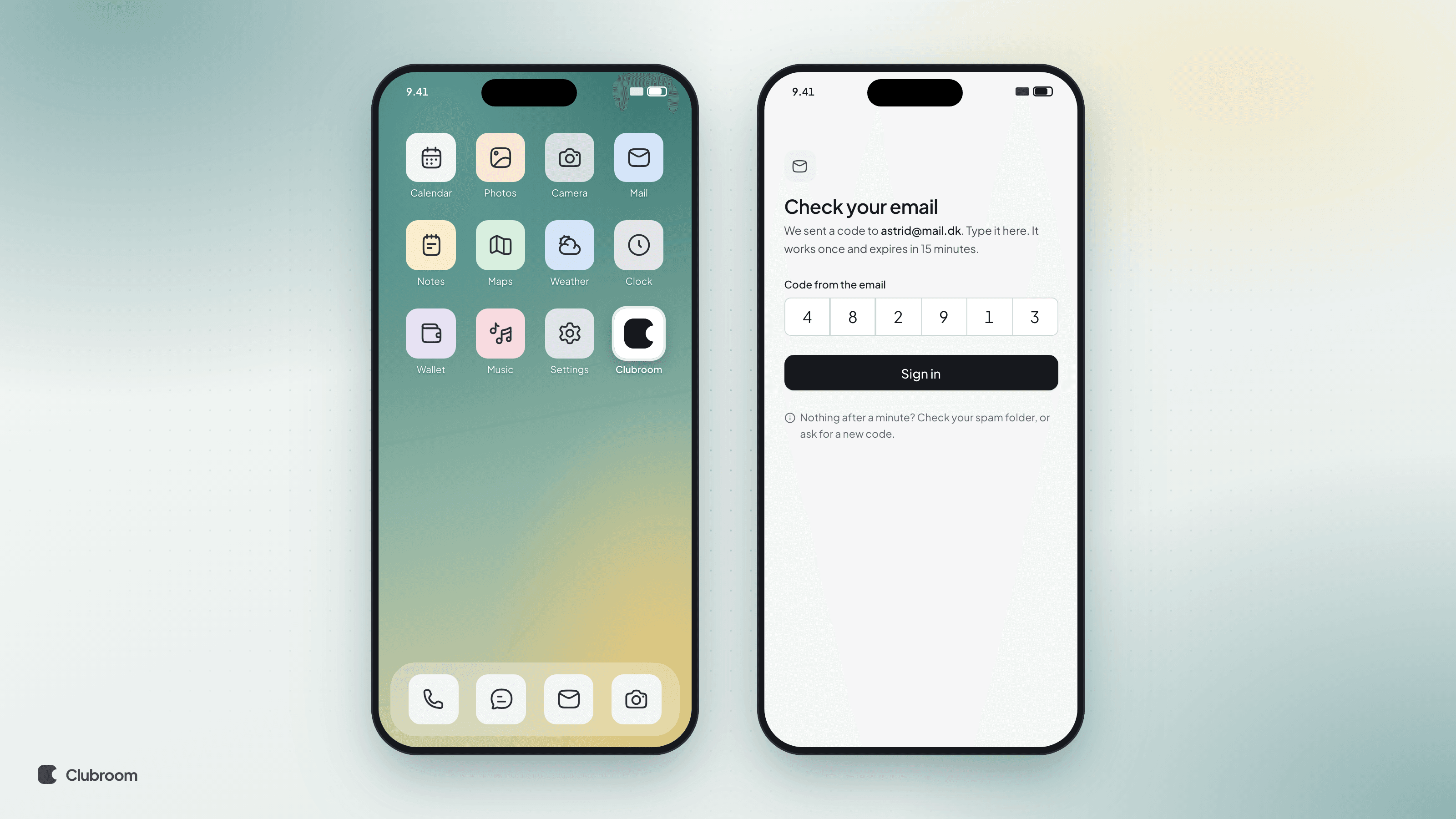
    Two phones. One shows the Clubroom icon on a home screen, the other shows Clubroom signing in with a 6-digit code from the email.

    You can now install Clubroom on your phone or computer, and it opens in its own window like an app. Nothing to download from an app store.

    How to install it

    • iPhone and iPad: open app.getclubroom.com in Safari, tap Share, then Add to Home Screen.
    • Android: open it in Chrome or Edge and choose Install app from the menu.
    • Computer: click the install icon in Chrome's or Edge's address bar.

    Sign in with a code

    The app on an iPhone keeps its own sign-in, so a link in an email can't reach it. That's why you sign in there with the 6-digit code from the sign-in email.

    Every sign-in email now has the code. It also helps when you read mail on one device and sign in on another.

    How to install Clubroom

    • Improved
    • Members

    Join links with tags

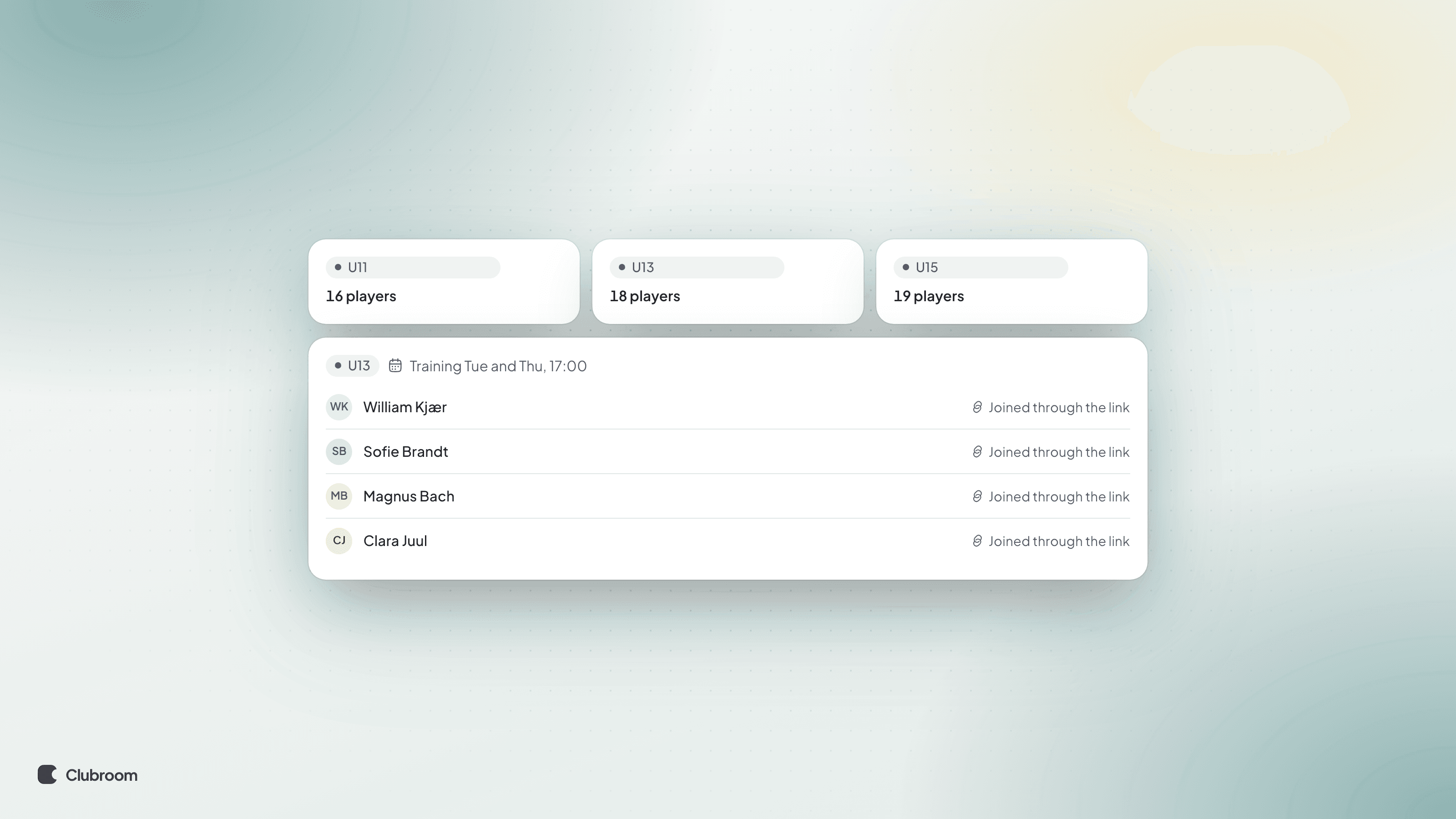
    Team cards with player counts, above a list of members who joined via the link.

    A join link can now tag everyone who signs up through it, say with "U13". New players land on the team, in the trainings and on the email list, without you doing a thing.

    Go to Settings › Members and click New link under Join links. Pick the tag, and optionally a last day or a most-joins limit. The link's row shows how many have joined, and once it's full or past its last day, its page says it's closed.

    • New
    • Insights

    Attendance per team

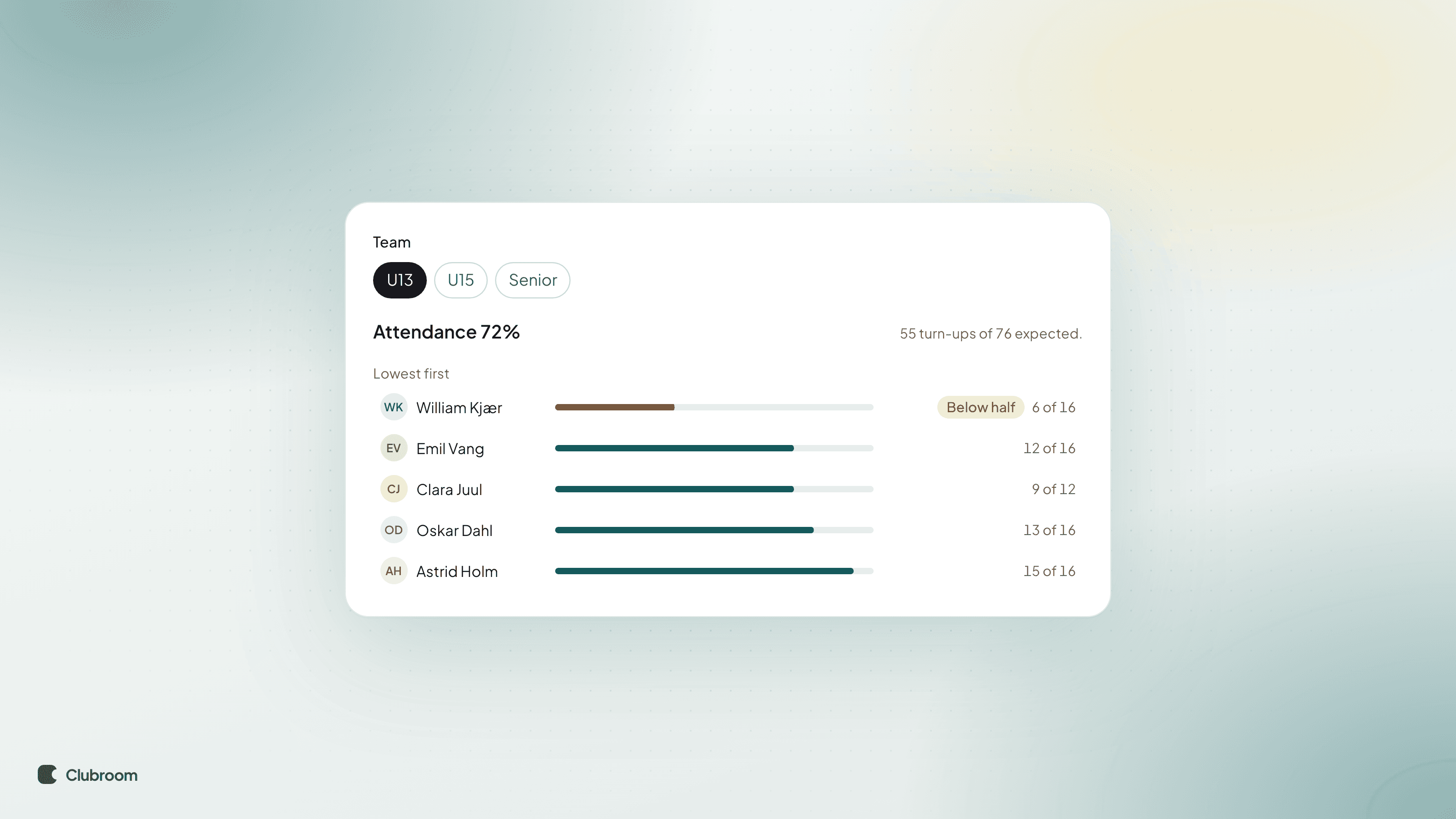
    Attendance of 72 % for U13, with a bar per member and the lowest flagged "Under half".

    See how a team turns up to its trainings. Go to Insights, open Attendance, and pick a tag such as "U13" and a period.

    You see the team's attendance month by month and member by member, lowest first. Anyone below half of the events is flagged, so you know who to talk to. Download CSV puts the list in a spreadsheet.

    The numbers come from the attendance you mark on each event.

    • New
    • Members

    CFR member count, ready to report

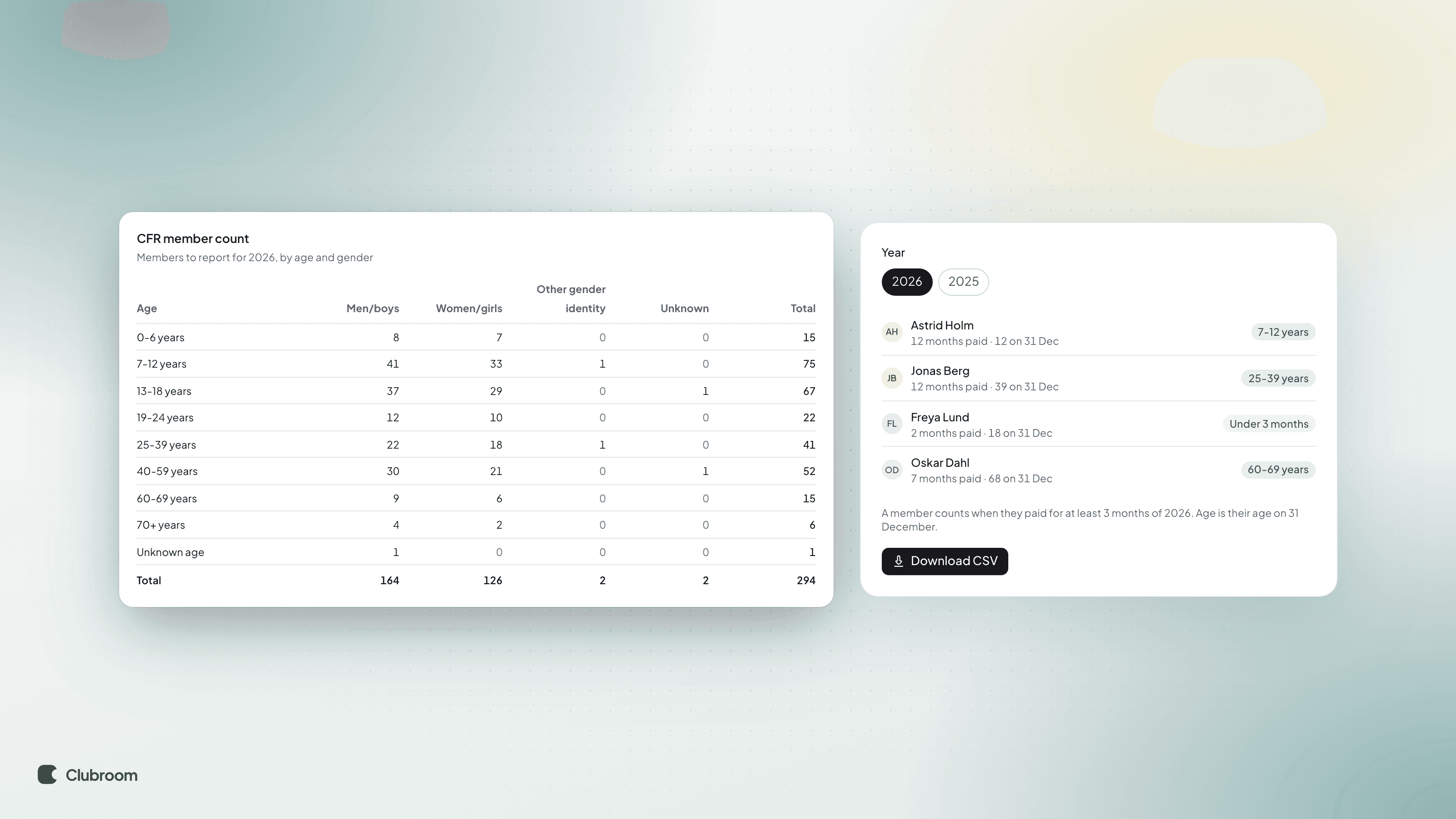
    Table of members by age and gender, next to a member list and a Download CSV button.

    Clubroom now counts your members the way CFR asks: by age and gender, in the 8 age bands. A member counts once they've paid for at least 3 months of the year, at their age on 31 December.

    Go to Members, open More (…) and click CFR count. If anyone lands in Unknown, the list shows you who, so you can fill in their birth date and gender. Click Open medlemstal.dk and type the numbers in. Download CSV keeps a copy for the club's papers.

    This year's window is 1 December 2026 to 31 January 2027.

    • New
    • Payments

    Bank transfers that match themselves

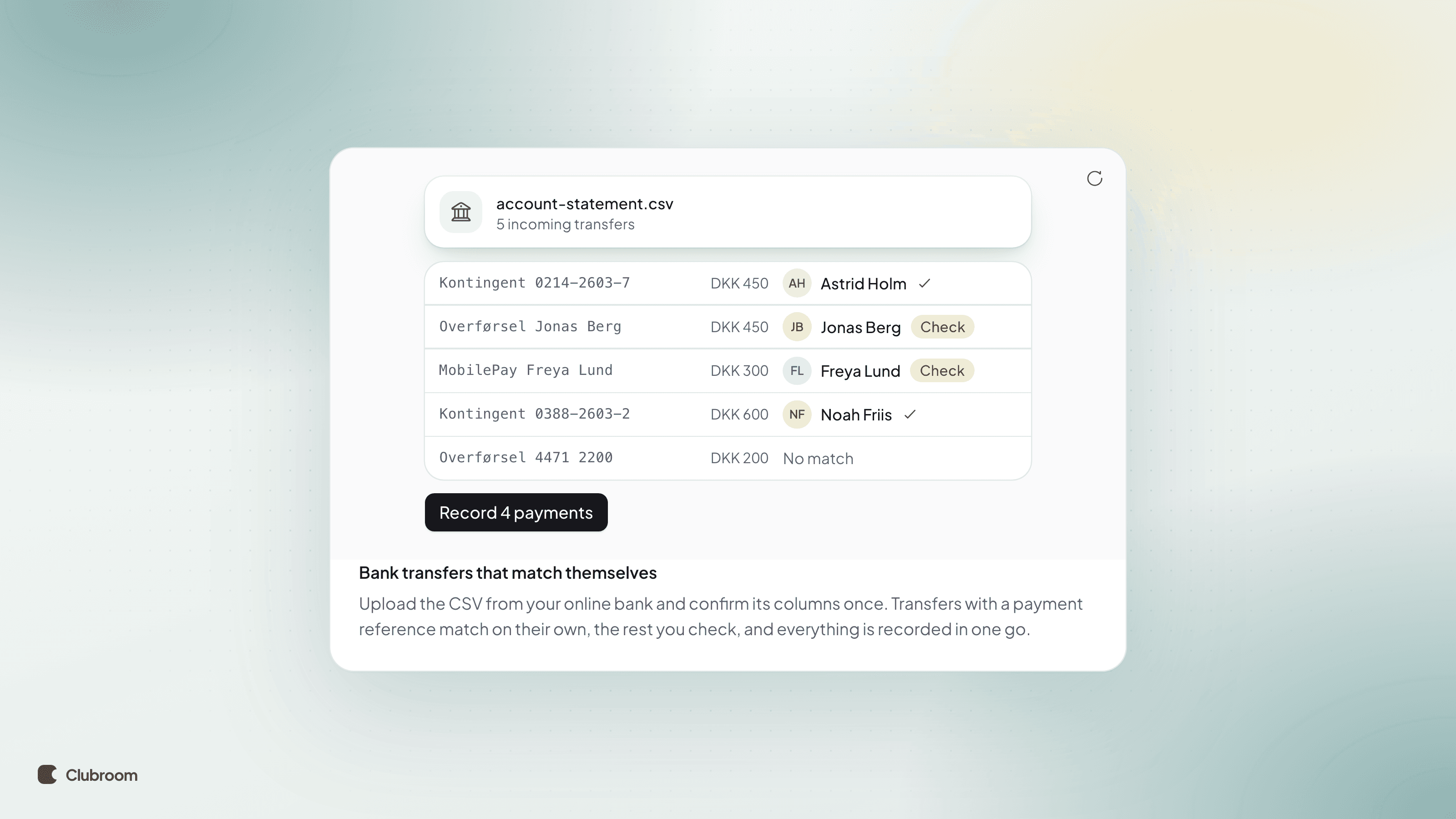
    Bank statement rows matched to members, with a Record 4 payments button.

    If members pay by bank transfer or MobilePay to the club's number, you no longer tick them off one by one. Download the statement from your online bank as CSV, go to Payments and click Match bank transfers.

    Transfers with the member's payment reference are sure and ticked straight away. Without one, Clubroom finds the member by the name in the bank text, and you check those. Click Record payments, and those members show as paid.

    The file is read in your browser, and uploading the same statement twice is safe: nothing is recorded twice.

    • Improved
    • Payments

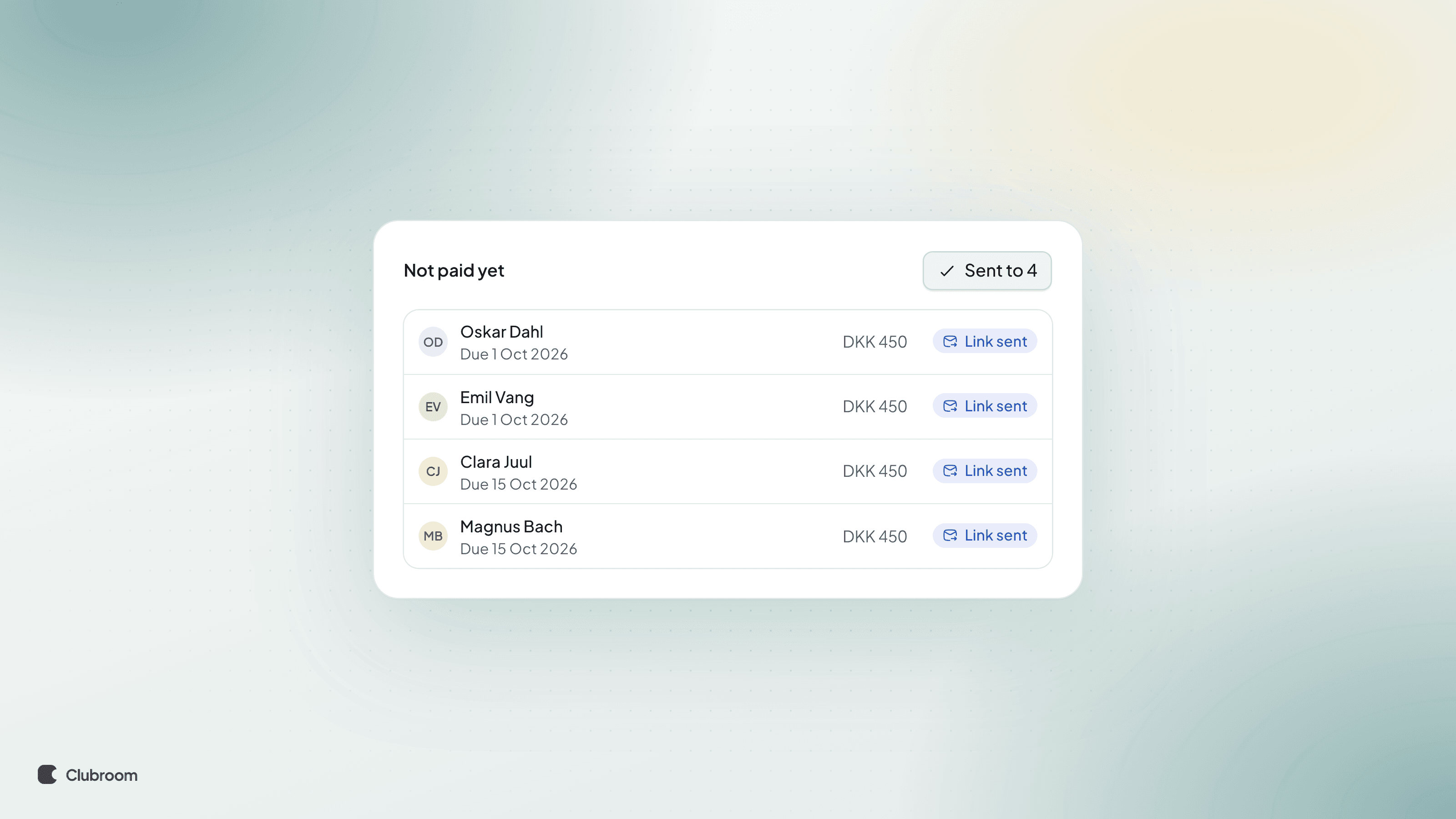
    Email everyone who hasn't paid

    List of members who haven't paid, each marked "Link sent", under a button reading "Sent to 4".

    On Payments, the season panel shows how many haven't paid yet. Click Email unpaid, and each of them gets an email with a link to renew. The button shows how many it goes to.

    Anyone you emailed in the last few days is skipped, so nobody gets two in a row. To email just a few, tick them on Members.